Saturday, May 03, 2008

Clickable image using HTML image tag: test

The previous test to make photos unclickable (click BACK button to get back to this page) failed.

I have to do this test in the EDIT HTML of the Blogger post editor window. I have uploaded a photo to the free Photobucket image host and below going to use the image HTML to display the photo:

Muppet Mobile Lab Disney
Photo of Muppet Mobile Lab is property of Dawn Endico


Update: Photo above is not clickable. You can try it for yourself.

Drag-drop photos in Blogger post editor COMPOSE mode makes photos unclickable: Test


Photo of “The Lab” is property of Steve Jurvetson

Blogger by default places uploaded photos right at the top of a post in the post editor window irrespective of the current position of the mouse cursor. Now I am first going t0 upload a photo of a "Muppet Mobile Lab" (google that if you don't know what it is). I am now preparing this post in the COMPOSE mode which is something which I practically never do because it gives me less control over my posts and also very much less options as far as what I can do. COMPOSE mode also add lots of formatting tags which you will not see when you are in that mode (but can when in the EDIT HTML mode).

Not only that, switching frequently between EDIT HTML mode and COMPOSE mode messes up a lot of things, especially if you use Special characters to display HTML tags.

I am going to upload the "Muppet Mobile Lab" photo, and it will appear right at the top of the post editor, above all these text, then I am going to drag it to below this line (hate this because of the tiny Blogger post editor window):


This "Muppet Mobile Lab" photo is property of Dawn Endico


Now I am going to upload another test photo titled “The Lab” which, even though the mouse cursor is currently here, will appear right at the top of the post. This one I am not going to touch (drag and drop), that is I am just going to leave it there, right at the top of the post.

Now I am going to publish and see what happen. I am going to click on both the photos and observe if they are clickable and if so, when clicked upon, will result in an enlarge photo or not.

Update: Both photos are clickable. However, another blogger had reported dragging and dropping of photos in the COMPOSE mode can make the photo unclickable and a few bloggers had confirmed it. This is the first time I tested it, and I was using Internet Explorer 7. Perhaps it depends on what browser you use to prepare your posts, upload your photos, drag-drop them. You should know that I first started preparing this post with Opera web browser and I could not drag the photo. In order to continue with the test, I had to save the post, switch over to Internet Explorer 7, edit the post and complete this test. So you see some things very often depend on the web browser you use. This could perhaps explain the discrepancy between my test and what other bloggers had reported.

Wednesday, April 23, 2008

Testing acne treatment as at the moment, I have nothing Blogger related topics to test

Well, the subject of this post says it all. I have a demonstration blog Beauty Tips and Tricks plus I have 3 daughters who are obviously, as grown women, are concerned about beauty related matters, plus I have a grandson plus another grandson on the way who will eventually grow to adolescence. That is when this acne problems may surface. And even grown men and women are not immune to acne problems although it may be less acute or frequent as for those of adolescence age. My son used to have acne problems, and if I remember correctly, was asking her sisters as to what to do.

Plus I have nieces, nephews and friends who are of adolescence age. So when I saw a "Real Before and After" tab in Murad Acne Complex, I immediately thought that a test might be available and I hope to take that opportunity to get any of those prepared to take a test to try that out. Unfortunately, it was all testimonies of people who have used Acne Complex Kit and I don't see any offer for testing. Anyway, I will try to contact them to see if there is any possibility of any of use getting a chance of testing and reviewing this Acne Complex Kit to treat Acne Complex.

Wish me good luck.

Friday, April 04, 2008

Testing lighting fixtures and response time

The title of this blog is "Testing Blogger Beta", but now Blogger Beta is no longer beta and at the moment there is nothing related to Blogger I would like to test. However, stuff site like search boxes which only searches a website and not the whole web, energy efficiency and stuff related to the environment is alway at the back of my mind as I have an Environmental blog: Enviroman Says and of course also online merchants also interests as shopping online means not having to burn up fossil fuel and generating green house gases which is a major contributor of our environmental problem of the century - global warming.

The online merchant for lighting fixtures I am currently looking at seem to have a wide range of brands, but before I even look into the brands, let me test the search box provided on their website. I just search for "energy saving" and I saw 2,225 results there. Wow! 2225 results for a simple test, and that for something which probably is not the most popular search term!!!

At search result number 53 was some enery saving kichler lighting while at search result number 54 were more energy saving maxim lighting. There was one sea gull lighting at search result number 66.

Note that clicking on a link in the search results that may mention one of the brand names can result in lighting fixtures not only of that brand, but also of other brands. Whatever it is, this test showed that Farrey online lighting fixtures do have a wide range plus a well functing search box to find exactly the kind of lighting fixture you are seeking.

Saturday, March 29, 2008

Testing blockquote for blogger

Not sure what is wanted. Going to make a test post and see if the is what he wants:

This paragraph uses blockquote to indent it. Is this what you want? If so, leave a comment. Whatever, feedback highly welcomed


This is a normal paragraph.

Test float photo caption to the left

Papaya fruit
I did some posts on caption for photo at How to add a caption to an image uploaded via the Blogger upload icon and Captions and titles for images in blog posts. Now a blogger wants to know how to do it with the photo to the left. As I have never done it before, I am going to test it first before I publish the instructions.

Papaya Fruit
This is a photo of a payaya fruit sliced into half. It is very healthy to eat lots of fruits plus I think payaya fruit may have carotene, something that can help prevent various kinds of cancer.

Let us see if this paragraph of text will wrap around the photo. I doubt it, but just had to try.

RESULT OF TEST: The first one seem OK. As you can see, the paragraphs of text wrap around the photo in that case, but result a bit confusing in the second and third.

Sunday, March 02, 2008

LiveVideo: testing how to embed into post

Alerted to an alternative to Youtube and Google Video by a friend - LiveVideo. I know nothing about LiveVideo and just wanted to test to see if uploading a video, one can get script to embed into a blog post. It turned out that we can, any you can see from the video below titled "Listen to a Chinaman Blog*Star speak". Now please don't pass judgement too quickly as that Chinaman Blog*Star is not a native English speaker, but he sure can write well as you can see from comments left by grateful bloggers. So please do not leave comments like "what a funny Chinaman".


Instruction on how to fit LiveVideo video into your blog

Now each template are different and fluid width template templates are harder to deal with as the width expand and contract according to the width of the monitor of a visitor. This template is of fixed width and the width of the main column in which this post is contained is 400 pixels. Below in the scroll box is the script obtained from LiveVideo with the width and the height of the original video highlighted in red:

<div><embed src="http://www.livevideo.com/flvplayer/embed/AAB7A041CBC74C87B5DA2FAB73E51E92" type="application/x-shockwave-flash" quality="high" WIDTH="445" HEIGHT="369" wmode="transparent"></embed><br/><a href="http://www.livevideo.com/video/embedLink/AAB7A041CBC74C87B5DA2FAB73E51E92/545170/listen-to-this-chinaman-blog-s.aspx">Listen to this Chinaman Blog*Star speak</a></div>


Now if I am to just paste the above code direct into the post editor window, it will be too wide for the main column, so I have to edit it to 400 pixels instead of 445 pixels. But wait, if you do that, the video will become distorted! You must change the height as well in such a way as to keep the aspect ratio constant.

How I do it is as follows: I open the free and very good Irfanview photo editor, click "Image" in the menu bar at the top and select "Create New (empty) image". You will get a pop up where you can create an image the same size as the video - 445x369 pixels (see screenshot below):
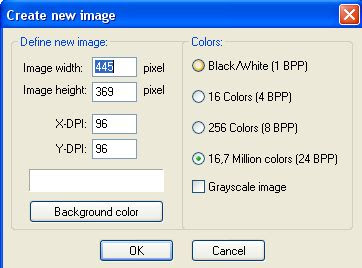
Irfanview create new image

Now all I have to di is to enter 445 for the height and 369 for the width for the new image to be created. Click "OK" and an image of the same size as the video will be create. Now I click on "Image" in the menu bar and select "Resize/resample" and just make sure the radio button beside "Preserve aspect ratio" is ticked, the enter 400 for the width and you will notice that the height automatically changed to 332.
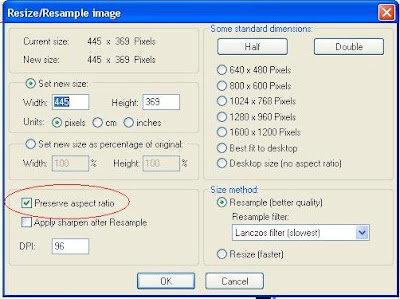
Irfanview resize image or photo

Take note of that, edit the script accordingly and in the scroll box is the script I used to embed that "Chinaman Blog*Star speaking" video above:

<div><embed src="http://www.livevideo.com/flvplayer/embed/AAB7A041CBC74C87B5DA2FAB73E51E92" type="application/x-shockwave-flash" quality="high" WIDTH="400" HEIGHT="332" wmode="transparent"></embed><br/><a href="http://www.livevideo.com/video/embedLink/AAB7A041CBC74C87B5DA2FAB73E51E92/545170/listen-to-this-chinaman-blog-s.aspx">Listen to this Chinaman Blog*Star speak</a></div>


Now if your template is not the same as mine, its widths will likely not be the same. You will have to refer to How to find the width of your blog Header, main column and sidebar or sidebars. Note that this post was published before Blogger Beta which is now out of beta and is the New Blogger or just plain Blogger. However, the method should be about the same. If you have a problem, just leave a comment and I will check the post, and if necessary, make a new post.